
Google is rolling out new cross-app Gemini actions that let eligible users create Docs, Sheets and Slides, run Deep Research, draft emails, schedule meetings and create Google Tasks without leaving the Workspace app they are already using. Open the Gemini side panel in Gmail, Drive, Docs or Slides—or Ask Gemini in Chat when available—then describe the output and the Workspace sources it should use. The rollout began September 2, 2026 and can take up to 15 days.[2][3]
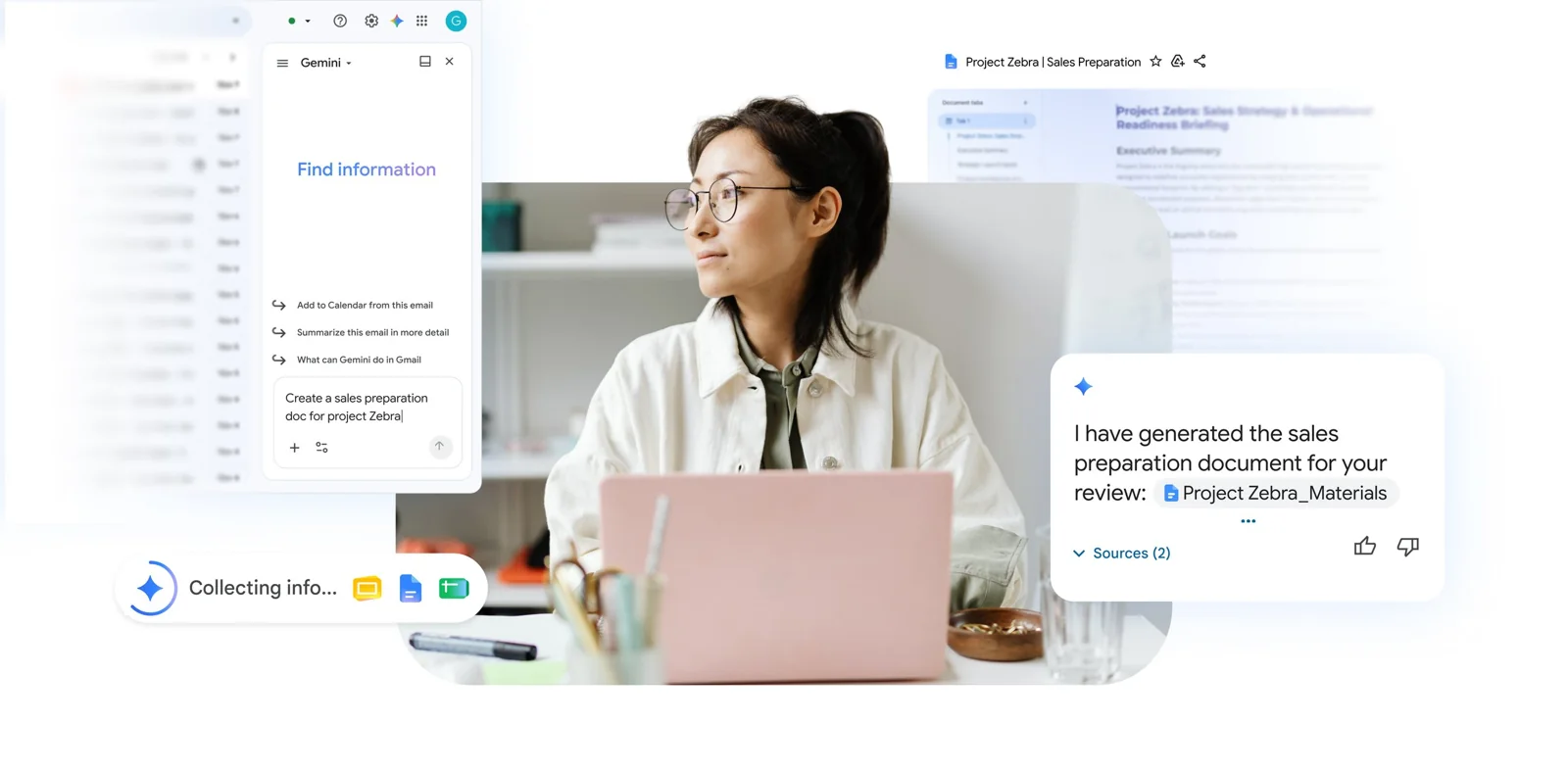
Quick start: Open Gmail, Drive, Docs, Slides or Chat, select the Gemini icon or Ask Gemini, and try: “Create a project brief from this thread with goals, owners, milestones, risks and next steps. Save it as a Google Doc. Show me a preview before sharing or sending anything.”
What changed?
Gemini can now act as an orchestrator across Google Workspace instead of requiring you to open the destination app first. For example, it can create a formatted Doc or structured Sheet while you remain in Gmail, turn a proposal in Docs into a Slides deck, draft an email from a document, or schedule a meeting from Chat.[2][3]
The six practical action groups are:
- Create content: Generate formatted Docs, structured Sheets and stylized Slides in the background and save them to Drive.
- Conduct Deep Research: Synthesize information from selected Workspace sources and the web into a report with source attribution.
- Draft or send emails: Prepare an email using the active document or other permitted project context.
- Schedule meetings: Find open times, create meetings and help resolve calendar conflicts.
- Create tasks and reminders: Turn decisions or follow-ups into Google Tasks.
- Work across apps: Start the action from Gmail, Drive, Docs, Slides or Chat instead of manually moving content between tabs.[2]
This is not a separate chatbot or a new Workspace app. It is a deeper set of actions inside the existing Gemini side panel and Ask Gemini interfaces.
Availability and rollout
| Requirement | Confirmed availability |
|---|---|
| Rollout start | September 2, 2026 |
| Rollout speed | Gradual; up to 15 days for feature visibility |
| Language at launch | English only |
| Business plans | Business Standard and Business Plus |
| Enterprise plans | Enterprise Standard and Enterprise Plus |
| Personal plans | Google AI Pro and Google AI Ultra |
| Education | Google AI Pro for Education |
| Other access | AI Expanded Access; Frontline Plus for scheduling only |
| Personal-plan scheduling | Not included at launch |
Google says the capabilities are rolling out to both Rapid Release and Scheduled Release domains. Usage of advanced AI features remains subject to limits, and some interfaces—especially Ask Gemini in Chat—may appear later during the rollout.[2][3]
How to check whether you have it
- Open Gmail, Drive, Docs or Slides on the web.
- Look for the Gemini icon near the upper-right area and open the side panel.
- In Google Chat, look for Ask Gemini.
- Ask Gemini to create a file in a different Workspace format—for example, request a Sheet while you are in Drive or a slide deck while you are in Docs.
- Confirm that Gemini offers to create the file and returns a Drive link.
- If the option is missing, check your Workspace edition, confirm that Gemini/Workspace Intelligence is allowed by your administrator, set the interface to English if needed, and wait for the gradual rollout to reach the account.
Do not assume a failed prompt means the feature is unsupported. During a gradual rollout, two users in the same organization may see a capability at different times.
Five best first tests
Use low-risk tasks whose output is easy to review.
1. Turn an email thread into a project brief
From Gmail, open the relevant thread and use:
Create a project brief from this email thread. Include the objective, confirmed decisions, open questions, owners, deadlines, dependencies and next steps. Save it as a Google Doc. Mark anything that is not explicitly stated as “needs confirmation.”
2. Build a tracker from a Drive folder
From the project folder in Drive:
Create a Google Sheet that inventories the files in this folder. Use columns for file name, type, owner, last modified date, project stage, next action and notes. Do not alter or move any source file.
3. Convert a proposal into a deck
From the proposal in Docs:
Turn this proposal into an eight-slide executive presentation. Keep the claims and numbers faithful to the document. Use @Brand Presentation as the visual reference. Include a final slide for decisions required. Save it to Drive and do not share it automatically.
4. Draft a contextual email
From a Doc:
Draft an email to the project team summarizing the decision, what changed, who owns each next step and the response deadline. Keep it under 180 words. Open it as a Gmail draft; do not send it.
5. Schedule a review meeting
From Chat:
Find a 30-minute time next week for the people in this conversation to review the launch plan. Avoid lunch hours and use normal working hours. Show the proposed time, attendees and agenda before creating the event.
Google says external communications and calendar commitments use a preview card so the user can review, edit and confirm the action before execution.[2]
20 copy-paste prompts
Replace bracketed text before running a prompt.
Create Docs, Sheets and Slides
- Brief from Gmail: “Create a one-page brief from this thread with background, decision, evidence, risks and next actions. Save it as a Doc.”
- Tracker from Drive: “Create a Sheet to track [project] using the selected folder. Include owner, status, deadline, blocker and source-link columns.”
- Deck from Docs: “Turn this document into a [number]-slide deck for [audience]. Preserve all verified figures and add speaker notes.”
- Comparison sheet: “Create a structured comparison Sheet for the options in these files. Include price, requirements, advantages, limitations and source.”
- Meeting pack: “Create a meeting pack with agenda, background, decisions required and pre-reading links from the selected files.”
Research and synthesis
- Internal/external comparison: “Run Deep Research comparing this draft with our selected internal files and current external sources. Separate sourced facts, internal assumptions and unresolved questions.”
- Customer themes: “Analyze the selected customer-feedback files. Create a report grouping recurring problems, requested outcomes, urgency signals and representative examples.”
- Decision memo: “Use only the selected Workspace sources to create a decision memo with options, trade-offs, recommendation and missing evidence.”
- Risk register: “Review these project files and create a risk register with likelihood, impact, owner, mitigation and source.”
- Weekly summary: “Summarize changes across the selected project folder and relevant email threads since [date]. List decisions, completed work, blockers and next deadlines.”
Email actions
- Review request: “Draft an email asking [team] to review this document by [date]. Include three specific questions. Save as a draft and do not send.”
- Client recap: “Draft a concise client recap from this document. Separate confirmed decisions from proposals and avoid adding claims not in the source.”
- Status update: “Create a weekly status email from the selected files with progress, metrics, risks, decisions needed and next-week priorities.”
- Follow-up: “Draft a polite follow-up based on this thread. Mention the outstanding decision and provide two clear response options.”
Meetings and tasks
- Schedule review: “Find a 45-minute time for [people] before [date]. Show conflicts and the proposed agenda before creating the event.”
- Resolve conflict: “Compare the existing meetings for [people] and suggest three alternatives for [meeting]. Do not change the calendar.”
- Create tasks: “Convert the action items in this document into Google Tasks with clear titles, owners in the task text and due dates. Preview the list first.”
- Reminder: “Remind me on [date] to follow up on the unresolved items in this document. Include a link to the source.”
- Launch checklist: “Create a task checklist from this launch plan. Group tasks by phase and flag any item without an owner or date.”
- Decision follow-through: “Identify every commitment in this email thread and prepare a task list with the responsible person, due date and exact source sentence.”
A safer operating checklist
Cross-app AI can save time, but it also has more opportunity to use the wrong context or take the wrong action. Apply these controls:
- Select sources deliberately. Point Gemini to the exact thread, folder or files instead of requesting a broad search when the task is sensitive.
- Separate drafting from execution. Ask for a Doc, email draft or calendar proposal first; review before sharing, sending or scheduling.
- Use explicit negative constraints. Say “do not send,” “do not share,” “do not move files” or “do not change the calendar.”
- Verify numbers and names. Open the cited source before relying on dates, prices, commitments or customer details.
- Check permissions. Gemini respects the authenticated user’s existing access, so broad human access can also mean broad AI context.[2]
- Avoid unnecessary sensitive data. Do not pull entire folders into a task when a small approved source set is enough.
- Keep a human approval step. Google says email sending and calendar commitments show preview cards, but users should still inspect recipients, attachments, time zones and permissions before confirmation.[2]
Google states that Workspace customer data is not reviewed by humans or used to train Gemini models, and that Gemini follows the user’s existing access permissions and sharing policies.[2] Those protections do not remove the need to check generated content for mistakes.
Troubleshooting
The Gemini icon is missing
Confirm that you are signed into an eligible account and using an eligible edition. In a managed Workspace, ask the administrator whether Gemini and Workspace Intelligence are enabled for your account. The launch is gradual, so access can take up to 15 days from September 2.[2]
Gemini can summarize but cannot create another file type
The older side-panel experience and the new cross-app actions may not arrive simultaneously. Try from another supported app, use English, and retry after the rollout window. If Gemini asks clarifying questions, answer them rather than treating that as a failure; Google says this behavior can occur while it refines the experience.[3]
Scheduling does not work on a personal plan
Google’s rollout table excludes scheduling for Google AI Pro personal accounts at launch. Scheduling access is listed for eligible Workspace editions and Frontline Plus.[2]
The output uses the wrong files
Cancel the action and rerun it with an explicit source list. Name files with @ references where supported, identify the exact Drive folder, and state that no other source should be used.
The action reached a usage limit
Advanced features are subject to usage limits. Wait for the allowance to reset or check the account’s Workspace edition and AI add-on options; do not assume every AI action has unlimited use.[2]
Is this worth using?
Yes—when the work already spans email, documents, spreadsheets, presentations, meetings and tasks. The strongest benefit is not better prose; it is reducing the copying, tab switching and manual setup between Workspace apps.
Start with document creation and drafts, where errors are reversible. Move to calendar or outbound-email actions only after your team has a clear review step. For recurring business workflows, save the best prompt as a standard operating template and record which source folders Gemini may use.
Frequently asked questions
Can Gemini create a Google Doc from Gmail?
Yes. Google says eligible users can ask Gemini in Gmail to generate a formatted document from an email thread and related permitted context, then receive a link to the saved Doc.[2][3]
Can Gemini create Slides while I am in Google Docs?
Yes. The new cross-app actions can turn a written proposal into an editable Slides deck without requiring you to leave Docs. Gemini can also use a referenced presentation as a style guide.[2][3]
Can Gemini send an email from Docs?
Google says Gemini can draft an email from a document and, where available, send it from the current Workspace app. Outbound communication is presented for human review and confirmation before execution.[2]
Can Gemini schedule meetings from Google Chat?
Yes for eligible Workspace users when Ask Gemini in Chat and scheduling functionality are available. Google AI Pro personal-plan availability excludes scheduling at launch.[2]
Which plans get the new cross-app Gemini actions?
Google lists Business Standard and Plus, Enterprise Standard and Plus, Google AI Pro and Ultra personal plans, Google AI Pro for Education, AI Expanded Access, and limited scheduling access for Frontline Plus.[2]
Is the feature available in every language?
No. Google lists English as the only supported language at launch and says more languages will be added later.[2]
Does Google use Workspace customer data to train Gemini?
Google says Workspace customer data is not reviewed by humans or used to train Gemini models, and Gemini follows existing user access permissions and sharing policies.[2]
Sources
[2] https://workspaceupdates.googleblog.com/2026/09/create-content-schedule-events-and-coordinate-tasks-across-Workspace-regardless-of-what-app-you-are-in.html — Google Workspace Updates: Create content, schedule events, and coordinate tasks across Workspace
[3] https://workspace.google.com/blog/product-announcements/less-switching-more-flow-5-new-agentic-capabilities-across-google-workspace-apps — Google Workspace Blog: 5 new agentic capabilities