
Google Pixel 11 can translate American Sign Language (ASL) into written English in real time through Gboard and Live Transcribe. To start, update Gboard, select US or Canadian English, add Sign-to-text to the Gboard toolbar, allow camera access, and keep your face, hands and upper body visible to the front camera.[1][2]
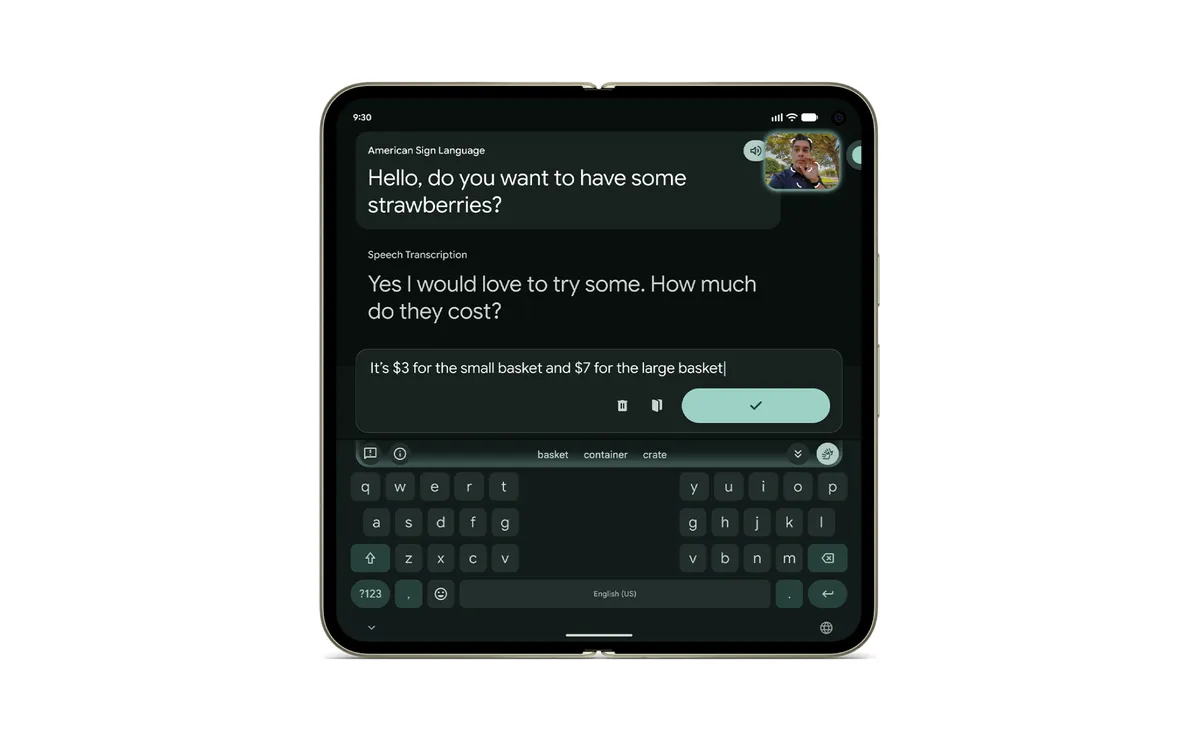
Pixel 11 sign-to-text requirements
Before setup, check these requirements:[2]
- A Google Pixel 11-series device
- Android 8 or later
- The latest version of Gboard
- Gboard keyboard language set to English (US) or English (Canada)
- Camera permission for Gboard
- At launch, ASL-to-English translation; other sign languages are not yet supported in the consumer feature[3]
Quick check: Open an app with a text field, display Gboard, tap the four-square Menu button and look for Sign-to-text. If it is missing, update Gboard and confirm that the keyboard language is en-US or en-CA.[2]
How to set up Sign-to-text in Gboard
- Open any app that accepts text, such as Google Messages or Keep.[2]
- Tap a text field to display Gboard.[2]
- Tap Sign-to-text in the toolbar. If it is hidden, tap Menu, then Sign-to-text.[2]
- To keep it visible, tap Edit, then touch, hold and drag Sign-to-text into the toolbar.[2]
- Read the onboarding information and tap Next.[2]
- Allow Gboard to use the camera when prompted.[2]
Google includes positioning videos during onboarding so users can see how to frame their face, upper body and hands.[2]
How to translate ASL into text
- Open an app where you can type and make sure Gboard is the active keyboard.[2]
- Tap Sign-to-text.[2]
- Position the Pixel so its front camera can clearly see your face, hands and upper body.[2]
- Begin signing. Pose landmarks should appear in the preview, while translated English streams into the text field.[2]
- Move your hands out of the camera view to indicate that you have finished.[2]
- Tap Sign-to-text again to return to the normal keyboard.[2]
The feature supports one-handed and two-handed signing. You can use it anywhere Gboard accepts input—for messages, notes, web searches and Gemini prompts—or use Live Transcribe for face-to-face conversations.[1][2]
Fix Sign-to-text if the button is missing
Work through this checklist in order:
- Confirm the phone: Google currently lists a Pixel 11 device as a requirement.[2]
- Update Gboard: Open Google Play Store, search for Gboard and install any available update.[2]
- Check the keyboard language: In Gboard settings, select English (US) or English (Canada).[2]
- Open the full toolbar menu: Tap Gboard’s four-square Menu button; the shortcut may not yet be pinned.[2]
- Check camera permission: Open Android Settings, find Gboard under Apps, and allow camera access. The feature cannot work without it.[2]
- Restart Gboard: Close the current app, reopen it and display the keyboard again.
Google says more devices are coming, but it has not provided a device-by-device rollout schedule in the cited announcement.[3]
Tips for clearer ASL translation
- Use even front lighting and avoid placing a bright window behind you.
- Keep your face, hands and upper body inside the preview.[2]
- Stabilize the phone or prop it up for two-handed signing.
- Avoid clutter crossing the outline of your hands.
- Select an alternative from Gboard’s suggestion strip if a translated word is incorrect.[2]
- Switch between signing and typing to revise the sentence without losing your place.[2]
Translation is not perfect. Google’s own published examples note occasional errors with rare signs, rapid fingerspelling, classifier depictions, passive constructions and tense without enough context.[3] Review important messages before sending them, especially names, numbers, dates, medical details or emergency information.
What happens to camera data?
According to Google’s help page, an on-device model converts visible movement into a two-dimensional set of pose coordinates. Those coordinates—not the original camera video—are sent to secure servers for translation. Google says the pose coordinates, video and translations are not stored, shared or used to train models.[2]
This means the translation is not described as fully offline. If the feature cannot connect or shows a system-health warning, check connectivity and close other resource-intensive apps before trying again.[2]
What Pixel 11 sign-to-text can and cannot do
It can
- Translate ASL into written English in real time
- Enter text in apps that accept Gboard input
- Support one-handed and two-handed signing
- Help compose messages, notes, searches and Gemini prompts
- Work alongside Live Transcribe for in-person conversations[1][2]
It cannot currently
- Translate every sign language in the shipping consumer feature
- Guarantee error-free translation
- Replace a qualified human interpreter where accuracy has legal, medical or safety consequences
- Run on every Android phone; Google currently documents Pixel 11 as the requirement and says more devices will come later[2][3]
Frequently asked questions
Does Pixel 11 sign-to-text translate ASL?
Yes. The launch version translates American Sign Language into written English through Gboard and Live Transcribe.[1][3]
Where is Sign-to-text in Gboard?
Open Gboard, tap the toolbar’s Sign-to-text button, or tap the four-square Menu button and select it. Use Edit to drag the shortcut onto the main toolbar.[2]
Why is Sign-to-text not showing on my Pixel?
The most likely checks are device eligibility, the latest Gboard version, and a keyboard language of English (US) or English (Canada). Also check the expanded Gboard menu and camera permission.[2]
Does Sign-to-text work in WhatsApp, Gmail or Google Search?
Google says it works in any app that accepts Gboard input, so it should be available in an app when Gboard is the active keyboard and the app provides a standard text field.[2]
Is Pixel sign-to-text free?
Google DeepMind says the feature is available on Pixel 11 at no additional cost.[3]
Does it store my signing video?
Google says the original video is discarded immediately and that videos, pose coordinates and translations are not stored. Only geometric coordinates are sent to the server for translation.[2][3]
Will older Pixel phones get Sign-to-text?
Google says more devices are coming soon, but the cited official pages do not name specific older Pixel models or dates.[3]
Sources
[1] Google: How to use sign-to-text on Pixel 11
[2] Google Pixel Help: Use sign-to-text
[3] Google DeepMind: Putting sign language AI into users’ hands