
Direct answer: Google Workspace now offers a built-in setup flow that can copy up to 10 Microsoft 365 users and their email, OneDrive files, calendar events, contacts and tasks into a new Google Workspace account. An admin connects a Microsoft business account, chooses the users and data types, and starts the import after verifying the domain and activating MX records. The launch is generally available, but it is designed for new-account setup—not as a complete enterprise migration tool.[1][2]
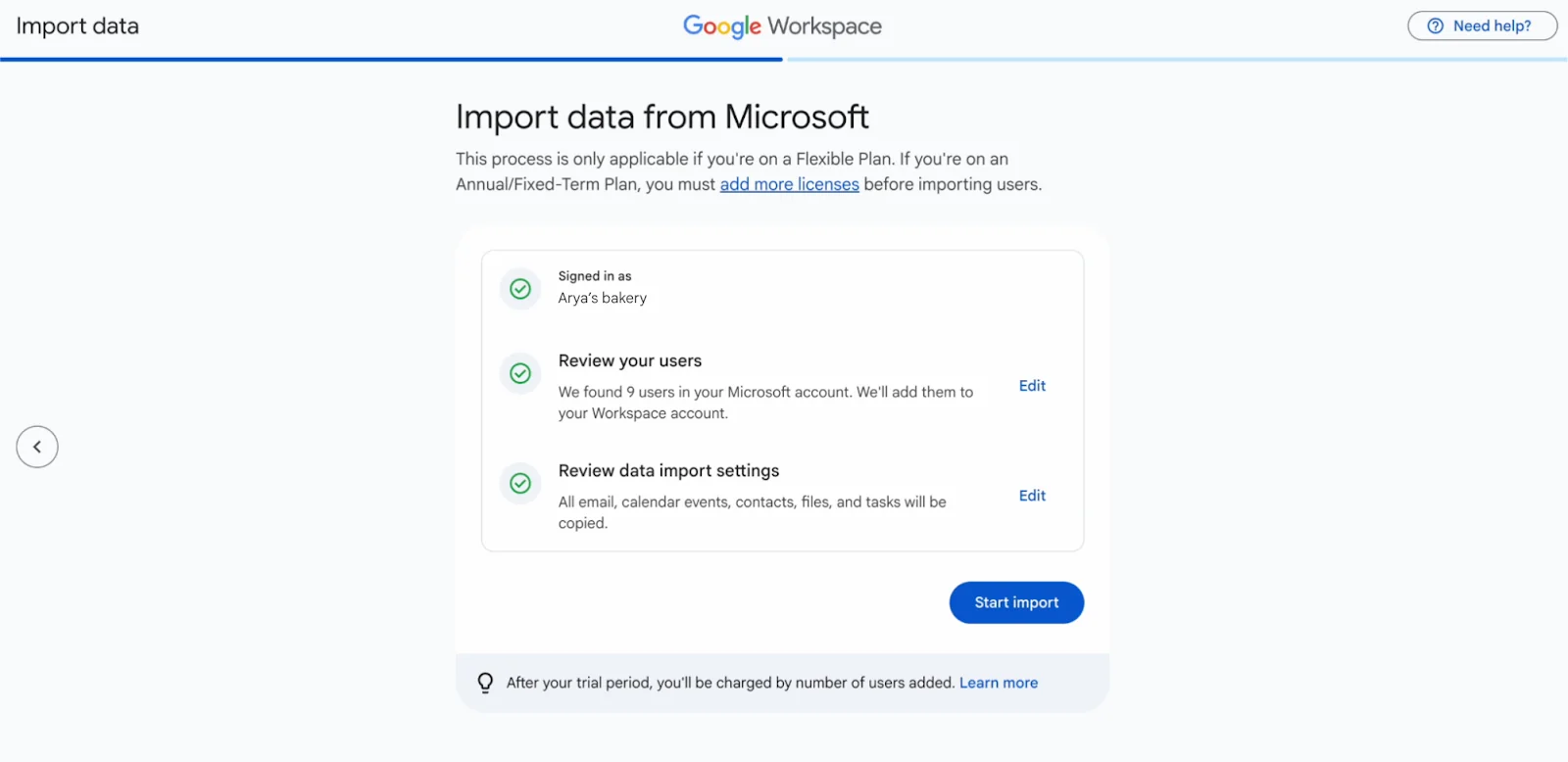
Quick preflight checklist
Before clicking Start import, confirm all of these:
- [ ] You are still completing the initial Google Workspace setup.
- [ ] You can sign in to Microsoft 365 with a Global Administrator account.
- [ ] Your Google Workspace domain is verified.
- [ ] Gmail MX records are activated for the domain.
- [ ] You are importing no more than 10 Microsoft users through this simplified setup flow.
- [ ] You have enough Google Workspace licenses for every user.
- [ ] You have selected only the data types you need: email, calendar events, contacts, files and/or tasks.
- [ ] You have recorded which users and data are included so that you do not import the same content twice.
- [ ] Every imported user has a secondary email address where you can forward their Workspace sign-in instructions.
Google says the import runs in the background, so the admin can continue setting up Workspace while it works.[1][2]
What the new Microsoft import copies
| Microsoft source | Google Workspace destination or result | Included in the setup tool? |
|---|---|---|
| Microsoft user accounts | New Google Workspace users | Yes |
| Exchange Online email | Gmail data | Yes |
| Outlook calendar events | Google Calendar data | Yes |
| Microsoft contacts | Google Contacts data | Yes |
| OneDrive files | Google Workspace file storage | Yes |
| Microsoft tasks | Google Workspace task data | Yes |
The setup screen lets the admin exclude individual users and turn each supported data type on or off for all selected users.[1][2]
Important: this process copies data. Google states that it does not delete or modify the existing Microsoft users.[2] Do not cancel Microsoft 365 merely because the import has started; validate the copied accounts and business data first.
How to import Microsoft 365 users and data during Google Workspace setup
1. Verify the domain and activate Gmail
Complete Google’s domain-verification step and activate the domain’s MX records. Google says the Microsoft import option appears in the setup process only after these prerequisites are complete.[1]
Changing MX records affects where new mail is delivered, so coordinate the cutover and keep access to both admin consoles during validation.
2. Open the setup import tool
In the Google Workspace setup flow, choose Go to import tool, select Microsoft, and click Continue.[2]
This simplified route is intended for setup. If the initial setup is already complete or you need a larger migration, use Google’s standard data-import options instead of trying to recreate the setup import.
3. Connect Microsoft 365
Click Connect, sign in to the Microsoft business account with Global Administrator credentials, choose the account and accept the requested connection.[1][2]
Use the real tenant administrator account for the organization being migrated. Do not grant access through an unrelated personal Microsoft account.
4. Review the user list
Under Review your users, click Edit. Uncheck any person who should not be copied, then choose Confirm users.[2]
For each selected person, confirm:
- the source email address belongs to the expected employee;
- the corresponding Google Workspace username is correct;
- a Workspace license is available;
- aliases, shared mailboxes and role addresses have been considered separately.
The simplified setup feature supports up to 10 Microsoft users. Google’s broader user-management documentation provides bulk options for larger organizations, including CSV upload, directory synchronization and the Admin SDK.[1][3]
5. Choose exactly what to copy
Under Review data import settings, click Edit and select one or more supported types:
- Calendar events
- Contacts
- Files
- Tasks
Then click Confirm settings.[2]
Choose deliberately. If a team has already copied OneDrive files manually, for example, importing files again could create duplicates or confusion.
6. Start the import
Click Start import. The job runs in the background, and you can select Continue with setup to monitor status, authenticate email or work through premium-feature setup.[2]
Google warns that stopping an import does not roll back data that has already been copied. The stopped setup import also cannot be restarted; a new import must use the standard Exchange Online or OneDrive import method.[2]
7. Deliver sign-in instructions safely
After each user is imported, Google sends Workspace sign-in instructions. Forward those instructions to a secondary email address that the user can access during the mail cutover.[2]
Do not send temporary credentials in a broad group message. Confirm each recipient and require two-step verification once the new account is active. Google recommends adding two-step verification after creating users.[3]
8. Validate before retiring Microsoft 365
For every imported user, check at least:
- The Workspace account can sign in.
- Recent and older email samples are present.
- Calendar events retain the expected dates, times and attendees.
- Contacts are available.
- A sample of OneDrive files opens correctly and has appropriate access.
- Tasks expected in the destination are present.
- New inbound and outbound email works after the MX change.
- Business-critical shared resources, delegated access, aliases and third-party integrations are accounted for.
The official setup pages describe the supported user and data copy, but they do not claim that every Microsoft 365 workload or tenant configuration is recreated. Treat the import as one controlled phase of a cutover, not proof that the entire Microsoft environment has been replaced.[1][2]
Flexible versus Annual plans
On a Flexible Plan, adding user accounts automatically increases the monthly charge. The simplified setup import supports up to 10 Microsoft users.[2][3]
On an Annual/Fixed-Term Plan, licenses must be available before users are imported. If all purchased licenses are already assigned, add the required licenses first.[1][3]
| Situation | Recommended action |
|---|---|
| Flexible Plan, 10 or fewer users | Use the new setup import and review the resulting monthly license count. |
| Annual/Fixed-Term Plan, licenses available | Confirm one license per imported user, then proceed. |
| Annual/Fixed-Term Plan, no spare licenses | Purchase or add licenses before starting. |
| More than 10 users | Use Google’s larger-scale user and data migration options. |
| Setup import already stopped | Continue with the standard Exchange Online or OneDrive import method; the setup job cannot be restarted. |
Avoid the duplicate-data trap
Google explicitly warns that running the regular data import tool on content already copied during Workspace setup creates duplicate data.[2]
Keep a simple migration ledger:
| User | Calendar | Contacts | Files | Tasks | Setup import completed | Validation completed | |
|---|---|---|---|---|---|---|---|
| user@example.com | Yes/No | Yes/No | Yes/No | Yes/No | Yes/No | Date/time | Initials/date |
Use this record before starting any follow-up Exchange Online or OneDrive import. If the status is unclear, investigate first rather than rerunning the same source data.
What this simplified import does not promise
The announcement and help documentation do not state that the setup flow migrates Microsoft Teams conversations, SharePoint sites, permissions, distribution groups, shared mailboxes, retention policies, compliance settings, device management or every Microsoft-specific file feature.[1][2]
That does not mean every item is impossible to migrate; it means this particular announcement does not establish that the simplified 10-user setup flow handles them. For anything outside the five listed data types, use the relevant Google migration documentation and test with non-critical data first.
Troubleshooting
The Microsoft import option is missing
First verify that the Google Workspace domain is confirmed and Gmail MX records are activated. The option appears during the setup process after those steps.[1] Also confirm that you are signed in as the Workspace admin and are still in the initial setup path.
I have more than 10 Microsoft users
Do not split the same content into improvised repeat runs. Google provides larger-scale account creation methods and standard data-import routes; choose a migration path sized for the organization.[1][3]
The import was stopped
Stopping does not remove the data already copied, and the setup import cannot be restarted. Inventory what arrived, then use the standard Exchange Online or OneDrive import route for remaining data while avoiding duplicates.[2]
Users did not receive their new login details
Google sends sign-in instructions after each user import. Forward the message to a verified secondary address for that user.[2] Do not rely on the old work mailbox after changing mail routing unless you have confirmed it still receives messages.
The Help page still says “beta”
Google’s September 11 announcement calls the feature generally available, while the linked Help page still labels the workflow “beta.”[1][2] Follow the current Admin console behavior and Google’s newest release notice; expect the documentation label to be updated separately.
Frequently asked questions
Can Google Workspace now import Microsoft 365 during setup?
Yes. The new generally available setup flow can copy selected Microsoft users plus email, OneDrive files, calendar events, contacts and tasks.[1]
How many Microsoft users can I import this way?
Up to 10 users through the simplified setup import on a Flexible Plan. Larger migrations should use Google’s other user-provisioning and data-import methods.[1][2][3]
Does the import delete anything from Microsoft 365?
No. Google says it copies the information and does not delete or modify the existing Microsoft users.[2]
Can I keep configuring Workspace during the import?
Yes. The import runs in the background, and the setup flow lets admins continue with status checks, email authentication and other setup work.[1][2]
Can I stop and restart the setup import?
You can stop it, but copied data is not rolled back and the setup import cannot be restarted. Google directs admins to its standard Exchange Online or OneDrive import methods for a new import.[2]
Is this a full Microsoft 365 tenant migration?
No such claim appears in Google’s announcement. The simplified flow covers users and five listed data types. Audit all other workloads and configurations separately.[1][2]
Sources
[1] https://workspaceupdates.googleblog.com/2026/09/seamlessly-import-your-team-and-data-from-Microsoft-to-Google-Workspace-during-setup.html?m=1 — Google Workspace: Import Microsoft Users and Data During Setup
[2] https://knowledge.workspace.google.com/admin/getting-started/import-business-data-during-setup — Google Workspace Help: Import Data During Setup
[3] https://knowledge.workspace.google.com/admin/users/options-for-adding-users — Google Workspace Help: Options for Adding Users