
Direct answer: ChatGPT for Teens is now the default experience when a user states that they are 13–17 or OpenAI’s system estimates that they are under 18. Teen protections are automatic; linking a parent account is optional, but it unlocks controls for quiet hours, study hours, selected features and limited safety notifications.[1][2]
Five-minute setup: In the parent’s ChatGPT account, open Settings → Parental controls → Add family member, choose phone or email, send the invitation, and ask the teen to accept it. Then review each setting together instead of simply leaving every toggle at its default.[2]
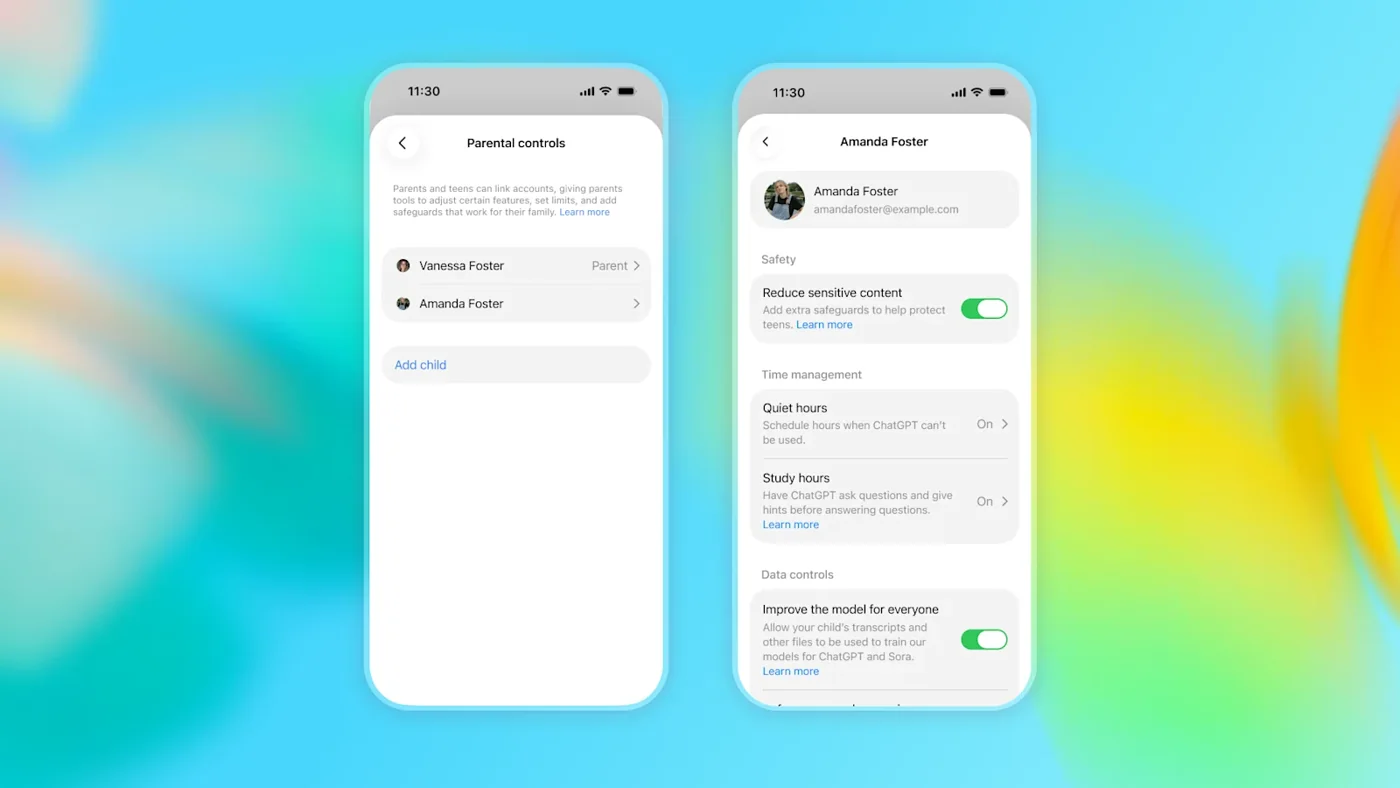
Parent setup checklist
Use this practical checklist after linking the accounts:
- [ ] Confirm that the invitation was accepted and the teen appears under Family members.
- [ ] Keep Reduce sensitive content enabled unless you have a clear reason to change it.
- [ ] Decide whether the teen’s chats may be used to improve OpenAI’s models.
- [ ] Decide whether saved memory is appropriate for the teen’s use.
- [ ] Review Voice Mode and image generation rather than enabling every feature automatically.
- [ ] Turn on Study Mode or schedule Study Hours for homework periods.
- [ ] Add Quiet Hours for bedtime, school or another screen-free period.
- [ ] Check where safety notifications will arrive: email, SMS or push notification.
- [ ] Explain that parental controls do not let a parent read chats.
- [ ] Agree on household rules for checking sources, protecting private information and asking an adult for help.
OpenAI says changes to some settings may apply only to new conversations, so start a fresh chat when testing an updated control.[2]
Who gets ChatGPT for Teens?
OpenAI launched the dedicated teen experience on August 18, 2026. Accounts are placed into it when the user states that they are 13–17 or when OpenAI’s age-estimation system predicts that the user is under 18.[1]
Age prediction can use behavioral and account-level signals such as the stated age, account age, activity times and usage patterns. An adult who is incorrectly placed in the under-18 experience can go to Settings → Account and use OpenAI’s age-verification process to restore adult access.[4]
The teen experience applies stronger safeguards by default in areas including self-harm, violence, eating disorders, dangerous activities and explicit sexual or graphic content. OpenAI also says it is designed to discourage emotional dependence and to make clear that ChatGPT is AI rather than a conscious person.[1]
How to link a parent and teen account
Parent sends the invitation
- Sign in to the parent or guardian’s ChatGPT account.
- Open the profile menu and select Settings.
- Select Parental controls.
- Select Add family member.
- Choose Use phone or Use email.
- Enter the teen’s phone number or email address and select Send.
- Ask the teen to open the invitation and connect their ChatGPT account.
- Return to Settings → Parental controls, select the teen under Family members, and review the available controls.[2]
Teen sends the invitation
A teen can instead open Settings → Parental controls → Invite a parent, choose phone or email and send the invitation. Each teen can be linked to only one parent or guardian at a time, while one adult can link to multiple teen accounts.[2]
Either side can unlink the accounts. If the teen disconnects, the linked parent is notified.[2]
What parents can control
The current control panel includes the following options:[2]
| Control | What it changes | Suggested question |
|---|---|---|
| Reduce sensitive content | Adds extra safeguards around sensitive or age-inappropriate material | Is there any reason not to keep this on? |
| Improve the model for everyone | Controls whether teen conversations may be used to improve models | Does our family want these chats used for training? |
| Reference saved memories | Controls whether ChatGPT saves and uses memory for personalization | Could persistent context include information we would rather not retain? |
| Voice Mode | Allows or blocks voice conversations | Is voice useful for language practice or likely to be distracting? |
| Image generation | Allows or blocks creating and editing images | Is this needed for school or creative projects? |
| Codex network access | Controls whether code run by ChatGPT Work can connect to public sites and APIs | Does the teen need networked coding tools? |
| Cloud browser | Controls whether ChatGPT Work can visit public websites | Does the teen understand that web pages can be inaccurate or unsafe? |
| Study Mode | Makes eligible new main chats begin in Study Mode | Would step-by-step guidance improve homework habits? |
| Study Hours | Schedules when eligible new chats start in Study Mode | Which homework blocks should default to guided learning? |
| Quiet Hours | Blocks access to ChatGPT during scheduled periods | Which sleep, school or family times should be screen-free? |
Study Hours do not block ChatGPT; they make eligible new main conversations start in Study Mode. Quiet Hours block ChatGPT, including ChatGPT Work, during the scheduled windows, and families can configure more than one Quiet Hours block.[2]
Recommended starter configuration
There is no universal setup for every family, but this conservative starting point is easy to review:
- Reduce sensitive content: on.
- Model training: off until the family has made an informed choice.
- Memory: off at first; enable later only if the benefit is clear.
- Study Mode: on for schoolwork.
- Study Hours: match the teen’s normal homework schedule.
- Quiet Hours: cover bedtime through morning and any agreed screen-free period.
- Voice and images: enable only when there is a real learning or creative use.
- Networked coding and cloud browser: leave off unless the teen needs them and understands the additional web-access risk.
After saving, start a new conversation from the teen account and test Study Mode, a Quiet Hours window and any disabled feature. OpenAI warns that some setting changes may not affect an already-open conversation immediately.[2]
What parental controls do not do
Parental controls do not provide a live dashboard of the teen’s messages and do not let the parent read conversation history. OpenAI says that a safety notification shares only the information needed to support the teen in limited high-risk situations.[2]
These controls also are not perfect supervision. A useful family plan should still cover:
- never sharing passwords, identity documents, home addresses or financial details
- checking factual answers against textbooks, teachers and reliable sources
- not treating an AI response as medical, legal or emergency help
- telling a trusted adult when a conversation feels upsetting, manipulative or unsafe
- using AI to explain and practise, not to submit work the student does not understand
How safety notifications work
Safety notifications are enabled by default after a parent and teen link accounts. OpenAI says its systems and trained reviewers may notify the parent in limited situations involving serious self-harm concerns or an account ban related to conversations about acts of violence. Parents can choose email, SMS or push delivery.[2]
A notification is not a replacement for professional care or emergency services. If someone may be in immediate danger, contact local emergency services or an appropriate crisis service rather than waiting for an app notification.[2]
OpenAI’s August 18 launch also says it is adding notifications related to eating disorders while limiting what is shared and focusing on situations where offline support may be important.[1]
Copy-and-paste family AI agreement
Use this as a starting template and edit it together:
We use ChatGPT to learn, practise and create—not to avoid thinking. We do not share passwords, private documents, exact locations, financial information or another person’s secrets. We check important facts with a teacher, parent or reliable source. We say when AI helped with schoolwork if our school requires disclosure. We do not use AI as a replacement for a trusted adult, doctor, counsellor or emergency service. If a chat becomes disturbing or unusually personal, we stop and talk to an adult.
10 learning prompts for teens
These prompts are designed to make the student do the thinking:
- “I’m stuck on this problem. Ask me one diagnostic question at a time; do not give the final answer until I explain my attempt.”
- “Turn these notes into a five-question quiz. Ask one question at a time and explain every mistake.”
- “Teach this concept with a simple analogy, then ask me to explain it back in my own words.”
- “Review my essay outline. Point out weak evidence and unclear reasoning, but do not write the essay for me.”
- “Create a seven-day revision plan from these topics and the time I have available.”
- “Give me three hints for this maths problem, from subtle to direct. Show only one hint at a time.”
- “Help me compare these two sources. Separate facts, opinions and claims that need verification.”
- “Role-play a language tutor. Correct my pronunciation or grammar gently after each response.”
- “Make flashcards from these notes, then test the cards I answer incorrectly more often.”
- “Help me plan this project into milestones. Ask what I have completed before suggesting the next task.”
OpenAI’s parent resource page highlights quizzes, flashcards, step-by-step Study Mode, project planning, writing feedback and source exploration as intended learning uses.[3]
FAQ
Is ChatGPT for Teens a separate app?
No separate installation is described. OpenAI says eligible accounts are automatically placed into a dedicated teen experience inside ChatGPT.[1]
Can parents read a teen’s ChatGPT conversations?
No. Linking accounts lets a parent manage selected settings and receive limited safety notifications, but it does not provide access to the teen’s conversations or real-time monitoring.[2]
Can a teen remove parental controls?
Yes. Either the teen or parent can unlink the accounts. The parent is notified if the teen unlinks.[2]
What is the difference between Study Hours and Quiet Hours?
Study Hours make eligible new main chats start in Study Mode but do not prevent access. Quiet Hours block access to ChatGPT during scheduled periods.[2]
What happens when the teen turns 18?
When the account is identified as 18 or older, it moves out of the teen experience. If the accounts are linked, parental controls and teen safety notifications are removed, and the account holder takes control of their settings.[2]
What if an adult is incorrectly classified as under 18?
OpenAI says the user can check whether safeguards were applied under Settings → Account and complete age verification to restore full adult access.[4]
Bottom line
ChatGPT for Teens adds automatic protections, but the most useful parent action is still a short joint setup: link accounts, review privacy and feature controls, schedule Study and Quiet Hours, test the settings in a new chat, and agree on rules for sources, personal information and real-world help.[1][2]
Sources
[1] https://openai.com/index/chatgpt-for-teens — Introducing ChatGPT for Teens: Built for learning, backed by protections
[2] https://help.openai.com/en/articles/12315553-parental-controls-on-chatgpt-faq — Parental controls in ChatGPT
[3] https://chatgpt.com/parent-resources — ChatGPT for Teens: Safety and Parental Controls
[4] https://openai.com/index/our-approach-to-age-prediction — Our approach to age prediction