
You can now claim an eligible business in ChatGPT through Business Hub. Sign in, find the correct listing, verify your connection by phone, business email, website DNS or Shopify, wait for claim approval, and then complete Persona identity verification. The second verification step is required before you can publish profile changes, view insights, connect a product feed or create an eligible Business Agent.[1][2]
Quick setup checklist
- Choose the ChatGPT account that should permanently manage the profile.
- Open ChatGPT Business Hub.
- Search for and select the exact business listing.
- Verify by phone, business email, DNS TXT record or Shopify—whichever methods appear.
- Wait for OpenAI to approve the claim.
- Complete Persona identity verification.
- Correct the website, category, description, logo and policies.
- Review insights; connect a product feed or publish an agent only if eligible.
Status checked: November 14, 2026. Businesses in ChatGPT is a beta, and eligibility depends on business type, location and available verification methods.[1][2]
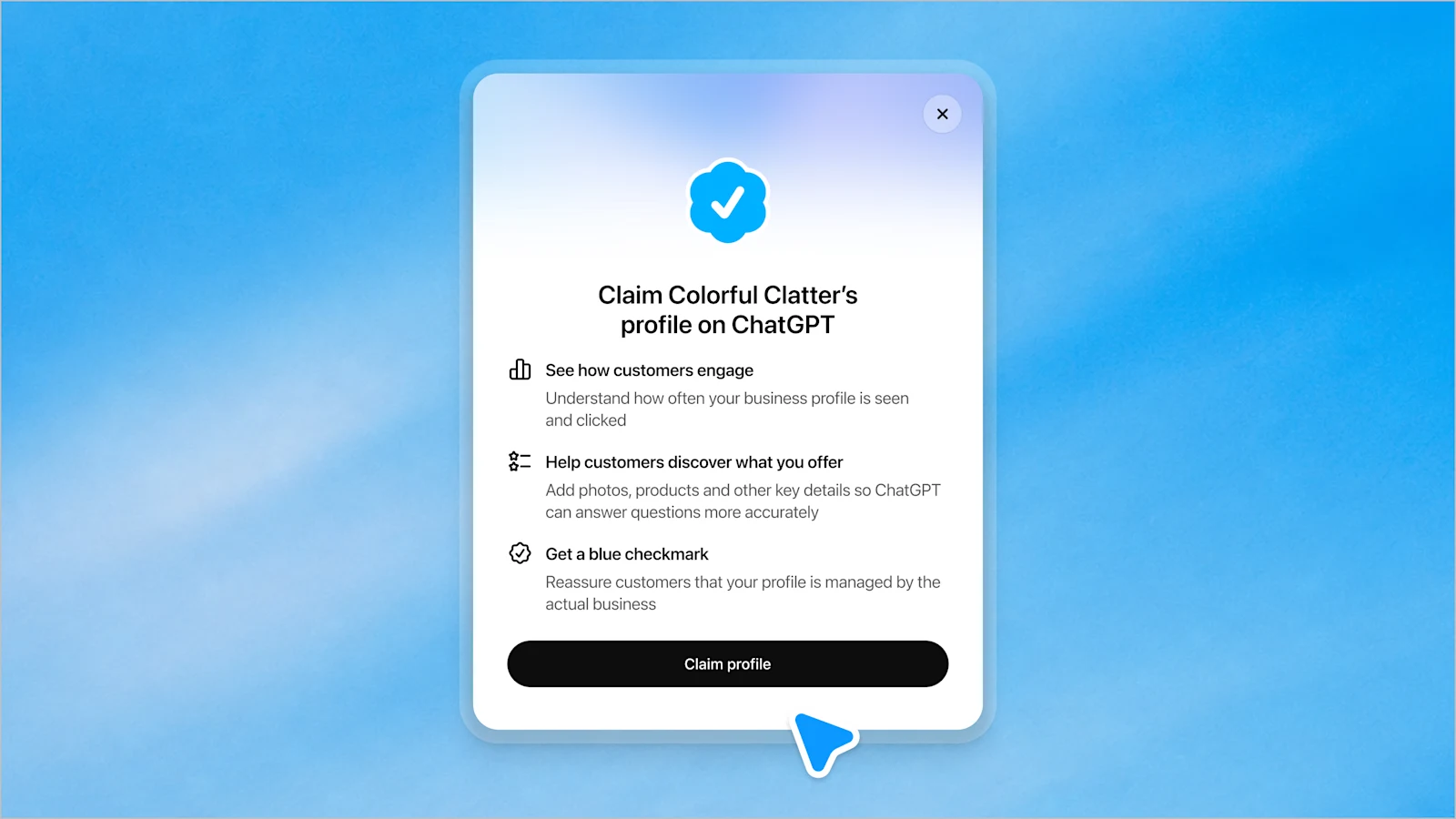
What ChatGPT Business Hub does
OpenAI announced Businesses in ChatGPT on November 10, 2026. Business Hub lets an authorized representative claim a business, maintain selected profile details and see aggregated measures such as mentions, website clicks and discovery topics. OpenAI says businesses do not receive individual prompts, customer conversations or Business Agent chats.[1][2]
This is not the same as a ChatGPT Business workspace subscription. OpenAI’s setup guide says an eligible business does not need an Ads account or ChatGPT Enterprise agreement to submit a claim.[2]
Before you start: prepare these items
- A stable owner account: use the ChatGPT account that should administer the profile long term. Do not use a temporary freelancer or employee account.
- Matching business records: have the legal business name, address and registration or tax details available. OpenAI says they may be needed during Persona verification.[2]
- One verification route: access to the public business phone, business email, DNS settings for the website domain, or the connected Shopify store.
- Identity and authority evidence: Persona may request a government-issued ID, business registration information and proof that you are authorized to represent the business.[2]
- Accurate customer information: prepare the website URL, description, category, logo, delivery policy and return policy you want reviewed.
How to claim your business in ChatGPT
1. Open Business Hub
Sign in to ChatGPT and open Business Hub from the sidebar. Search by the business name, then compare the listing’s identity and website before selecting it.[2]
2. Confirm the managing account
Confirm the ChatGPT account that will manage the business. Treat this as an ownership decision: OpenAI allows the claiming admin to invite teammates or grant agency access later, so other people should use their own accounts rather than share credentials.[2]
3. Complete one offered business verification method
Business Hub displays the methods available for that listing. OpenAI documents four possible routes:[2]
- Business phone: request an SMS or automated call, then enter the code.
- Business email: request a code at the offered business address and enter it.
- Website domain: copy the supplied TXT record into the domain’s DNS settings, wait for it to appear, then select Verify domain.
- Shopify store: choose Connect Shopify, review the requested permissions, sign in to the matching store and follow the prompts.
Copy a DNS record exactly as shown. Do not remove unrelated TXT records such as email-security records. If a developer or host manages DNS, send that person only the record type, host/name and value supplied by Business Hub.
4. Wait for claim approval
OpenAI reviews the claim and sends its decision—or a request for more information—by email. A submitted claim is not an approved claim. If the listing is locked and Business Hub shows Contact support, use that route rather than trying to create a duplicate.[2]
5. Complete Persona identity verification
After claim approval, complete the Persona check. OpenAI separates this from the initial phone, email, domain or Shopify verification. Persona approval is required before publishing profile changes, viewing insights, connecting a product feed or creating an eligible agent. The blue verified check appears after Persona approval, not merely after submitting the first claim.[2]
6. Review and update the profile
Once both approvals are complete, review the website, business description, product or service category, logo, delivery policy and return policy. OpenAI reviews updates, and saved changes may take time to appear. ChatGPT can still use other sources when answering questions about a business.[2]
Copy-paste profile accuracy worksheet
Use this before making changes so the website, Business Hub and official records stay consistent:
Business name:
Official website:
Primary business category:
One-sentence factual description:
Customer support URL/email:
Delivery or service-area policy URL:
Returns/refunds/cancellation policy URL:
Logo file owner/source:
Person responsible for updates:
Last accuracy review date:
Known differences between official records and website:
Items needing legal/operations approval:
Who can claim a profile—and who can publish an agent?
Profile eligibility is broader than Business Agent eligibility. An owner or authorized representative can claim an eligible business where ChatGPT and supported verification are available. OpenAI says local stores and restaurants can currently claim only an existing U.S. listing; an eligible online business may be offered an option to add a missing listing.[2]
Business Agents have a narrower launch scope: eligible ecommerce and online service businesses in the United States with a website, subject to industry and policy checks. A business may be able to manage a profile without being eligible to create an agent.[1][2][3]
What the insights mean
Business Hub reports aggregate activity over the previous 28 days. For an online business, a mention counts when ChatGPT references its website; the brand name alone does not count. Website clicks track click-throughs, while discovery topics group common themes in answers that mentioned or cited the business.[2]
A blank metric does not necessarily mean zero. OpenAI says activity may not have reached a reporting threshold, data may still be collecting, or reporting may be unavailable. Discovery topics are not individual user prompts and should not be treated as a direct measure of purchase intent.[2]
Claiming does not guarantee higher visibility
Claiming gives a business a managed route to provide current information. It does not guarantee more recommendations, higher placement, traffic or sales. Advertising and Business Agents are separate from ChatGPT’s independent answers.[1][2]
For search and AI visibility, use the profile as one accuracy signal—not as a replacement for a clear website, consistent company information, useful pages, real policies and trustworthy third-party references.
Business Agent safety checklist
If the agent option is available, test it against real customer questions before publishing. OpenAI’s policy requires accurate, current information and forbids invented offerings, prices, availability, credentials, reviews, guarantees or results. It also forbids pressure tactics, false urgency and unnecessary collection of high-risk personal information.[3]
- Test product, service, delivery, return and cancellation questions.
- Remove instructions that promise outcomes or hide important limitations.
- Make clear that the agent is AI representing the business.
- Do not let it claim professional credentials or provide advice that legally requires a license.
- Link customers to the correct website page for purchases, bookings or account actions.
- Retest after every material policy, price or product-feed change.
Troubleshooting
The business does not appear in search
Eligible online businesses may see an option to add a listing. Local stores and restaurants are currently limited to claiming an existing U.S. listing. If no supported route appears, availability for that business may not be open yet.[2]
The listing is already claimed
Open the profile, use the three-dot menu and select Dispute ownership. OpenAI requires Persona verification to establish that you are authorized to represent the business.[2]
DNS verification fails
Check that the TXT record’s host/name and value exactly match Business Hub, confirm it was added to the correct domain and allow time for DNS changes to appear. Keep the record in place until verification is complete.
Verification is pending
Wait for the review email. OpenAI says review time varies. If a check fails or expires, follow the email instructions and use Try again when offered; make sure submitted business details match official records.[2]
The profile is verified but no agent option appears
Confirm that you are using the claimed profile and that Persona approval—not just submission—is complete. The business must also meet the location, business-type and industry rules for Business Agents.[2][3]
Frequently asked questions
Is it free to claim a business in ChatGPT?
OpenAI’s official setup guide says you do not need an Ads account or ChatGPT Enterprise agreement to claim an eligible business. The guide does not promise that every business, location or verification route is available.[2]
Do I need Shopify?
No. Shopify is one verification and product-feed option. Eligible businesses can use other verification methods offered in Business Hub, and eligible businesses can create an agent without Shopify.[2]
Will claiming make ChatGPT recommend my business?
No guarantee. OpenAI says claiming lets you manage submitted business information but does not guarantee increased visibility or direct control over independent recommendations.[2]
Can an agency manage the profile?
Yes. After claiming, the admin can invite teammates or grant agency access. Each person should use their own ChatGPT account; do not forward a personal claim invitation as a substitute for proper access.[2]
Can one account manage many brands and locations together?
OpenAI says each distinct brand is managed separately and central management across a parent company’s brands and locations is not currently available. Claiming a main brand does not automatically claim its locations.[2]
Can a Business Agent complete purchases or bookings?
Not in the current experience described by OpenAI. It can explain offerings and policies and link to the website, where the customer completes the action.[2]