
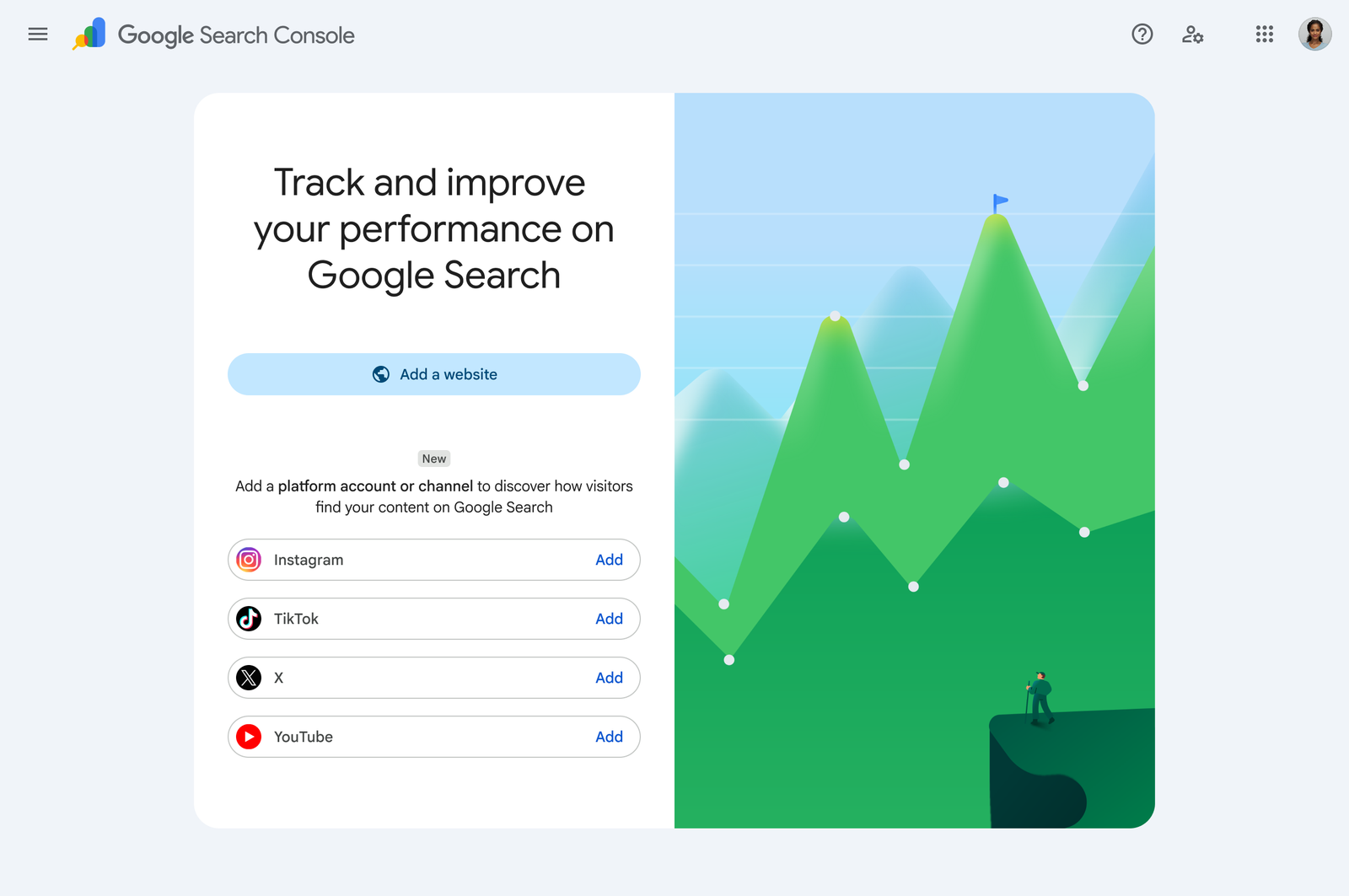
Google Search Console can now track how an Instagram, TikTok, X, or YouTube account performs in Google Search and Discover. Add each account as a separate “platform property,” complete the authorization step, and then use the Performance and Insights reports to find the posts and search queries already earning visibility.
Quick setup path: Open Search Console → open the property selector → Add property → choose Instagram, TikTok, X, or YouTube → authorize the account. Google says the feature is rolling out gradually, so the platform choices may not appear in every account yet.
What are Search Console platform properties?
A platform property is a Search Console property for a supported social account or video channel rather than a website. Google’s initial supported list is Instagram, TikTok, X, and YouTube. It can be verified through an automated connection with an existing website property or by logging in to the platform directly. This does not replace your website property; it creates another property in the same Search Console account.
According to Google’s launch announcement, the reports can show the search terms that lead people to your social posts, along with clicks, impressions, top content, traffic trends, and achievements.
How to connect Instagram, TikTok, X, or YouTube
- Sign in to Google Search Console with the Google account you use for reporting.
- Open the property selector at the top-left.
- Select + Add property.
- Choose Instagram, TikTok, X, or YouTube.
- Follow the on-screen steps to sign in and authorize the correct account or channel.
- Repeat the process for each active profile you manage.
- Return after a few days and review the Performance and Insights reports for usable data.
You must prove that you own or appropriately manage the account or channel. Google’s property setup documentation also notes that adding a property does not change how that account appears in Google Search; it enables reporting.
What to check after setup
| Report or metric | Question to answer | Action to take |
|---|---|---|
| Queries | Which searches already surface your posts or videos? | Create a follow-up post, video, or website guide that answers the same intent more completely. |
| Top content | Which individual posts earn the most clicks? | Update, repurpose, or expand the winning format and topic. |
| Impressions | Which content appears often but receives few clicks? | Improve the opening line, thumbnail, title, caption, or on-screen text without changing the underlying promise. |
| Trending up | Which topics are gaining clicks versus the previous period? | Publish a timely sequel while interest is rising. |
| Trending down | Which established posts are losing clicks? | Check whether the information, creative, or search intent has changed. |
| Countries | Where are search visitors located? | Adapt language, examples, posting times, and follow-up resources for that audience. |
Google’s Insights documentation explains that “trending up” and “trending down” are based on changes in click counts compared with the previous period, not percentage change. Keep that distinction in mind when prioritizing content.
A practical 20-minute weekly workflow
- 5 minutes — spot demand: list the top five queries and the three biggest upward movers.
- 5 minutes — map content: match each query to the social post, video, or channel page receiving visibility.
- 5 minutes — choose one action: improve the existing asset, publish a sequel, or build a deeper page on your own website.
- 5 minutes — log the test: record the query, current clicks/impressions, action taken, and the date you will review it.
Copy-paste tracking template
Platform:
Review period:
Search query:
Current impressions:
Current clicks:
CTR:
Winning post/video URL:
What the searcher appears to want:
Action this week:
Owner:
Review date:
Result:
Troubleshooting checklist
- No platform options: Google’s current help page says the feature is still rolling out gradually. Check again later rather than adding a social URL as a normal website property.
- Verification fails: confirm that you are signed in to the correct social account and that you have sufficient ownership or management access.
- No data yet: allow several days, then confirm that the account’s content has appeared in Google Search. A new property cannot create demand by itself.
- Wrong profile connected: remove or switch the property, then authorize the intended account.
- Multiple brand accounts: add each supported account as a separate property and use a consistent naming convention in your reporting sheet.
What this feature does not do
- It does not merge social accounts into your website property.
- It does not guarantee that a post will rank or receive traffic.
- It does not replace native Instagram, TikTok, X, or YouTube analytics.
- It does not give you permission to connect an account you do not own or manage.
FAQ
Can I use Search Console without a website?
Yes. Google says creators can create a supported platform property even without owning a website, subject to account verification and rollout availability.
Which social platforms work with Search Console?
The initial supported platforms are Instagram, TikTok, X, and YouTube.
What data can I see?
Google lists clicks, impressions, queries, top posts, recent trends, and achievements among the available reporting features. Export options are available from the Performance report.
Why can’t I see platform properties yet?
The current Search Console help documentation says availability is gradual, so the option might not yet be present in every Google account.