
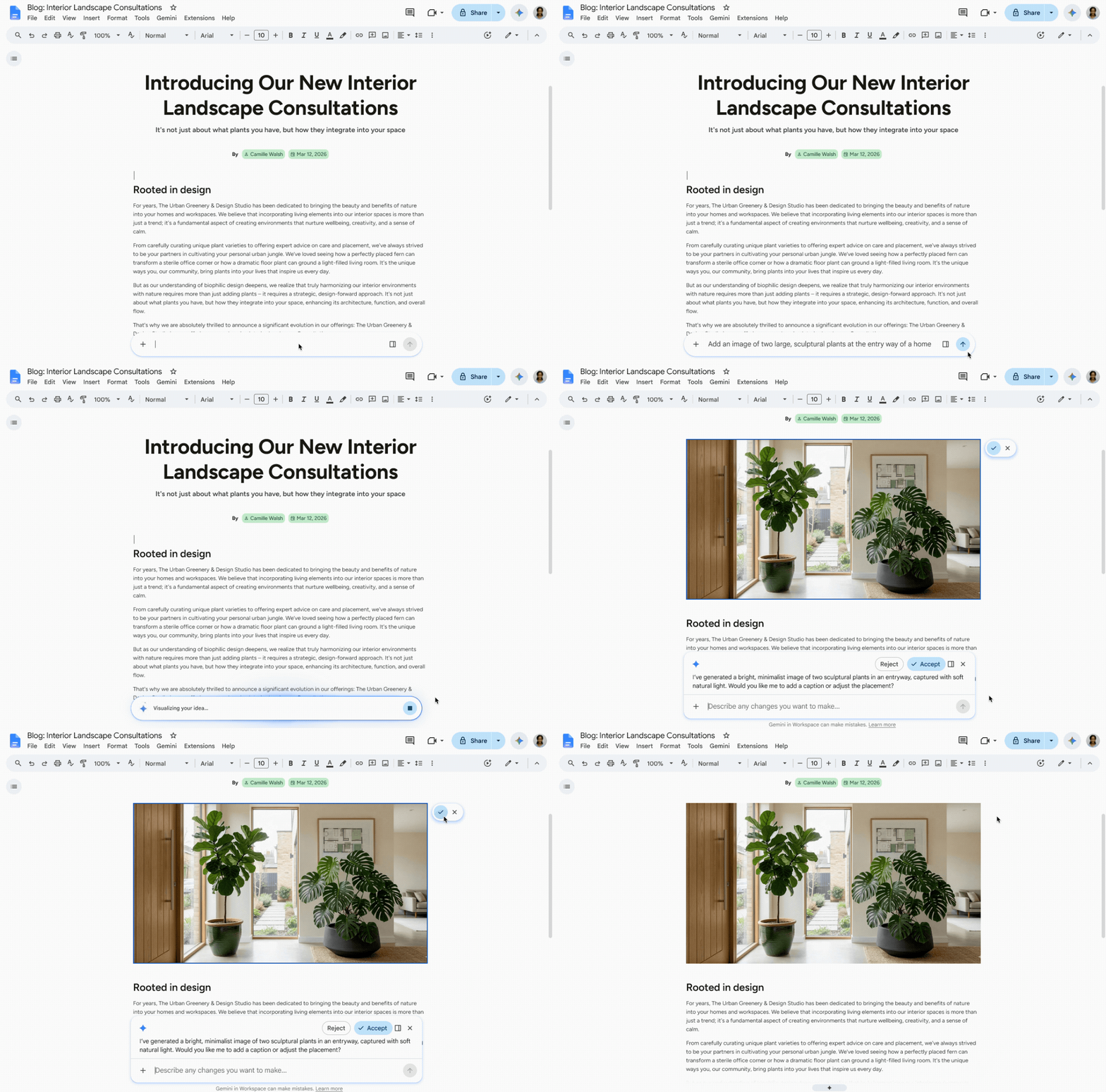
Google Docs can now use Gemini to create and edit images, diagrams and infographics without leaving the document. Open a document on the web, use the Gemini side panel or bottom bar, and describe the visual you need. The rollout began July 28, 2026 and can take up to 15 days to appear on eligible accounts.
Quick setup checklist
- Open Google Docs on the web; the feature is not currently supported in the mobile apps.
- Confirm that your account has an eligible Google Workspace or Google AI plan.
- For managed Workspace accounts, ask an administrator to enable Gemini for Workspace in Drive.
- Make sure Workspace smart features are enabled in your account.
- Open the Gemini side panel or use the Gemini bar at the bottom of the document.
- Describe the image, diagram or infographic you want and include its location in the document.
- Review the result for accuracy before sharing or publishing it.
Copy-and-paste prompts for Google Docs visuals
These templates give Gemini a purpose, format and placement. Replace the text in brackets with details from your document.
Create an infographic
Create a clean vertical infographic that summarizes the five main findings in this document. Use short labels, simple icons and the document’s existing color palette. Add it below the executive summary.
Turn a process into a diagram
Create a left-to-right flowchart for the process described under [section name]. Show each decision point clearly and place the diagram below that section.
Create visuals for several sections
Add one simple visual to each major section of this report. Keep the style, colors and aspect ratio consistent. Do not add facts that are not already in the document.
Edit an existing image
Update the selected visual to a 16:9 aspect ratio, increase text contrast and match the blue and gray style used elsewhere in this document. Preserve all factual labels.
What the new Gemini feature can do
According to Google’s official announcement, Gemini uses the context in the document to produce relevant visuals. It can:
- Generate images beside the text you are writing.
- Convert document information into diagrams or infographics.
- Modify an existing visual through natural-language instructions.
- Change details such as style and aspect ratio.
- Create or update multiple visuals in one request.
This is especially useful for proposals, reports, lesson plans, project briefs and internal documentation. Context awareness can reduce manual copying, but it does not remove the need to verify names, numbers, labels or relationships shown in a generated visual.
Who gets Gemini visuals in Google Docs?
Google lists the feature for the following plans:
- Business: Business Standard and Business Plus
- Enterprise: Enterprise Standard and Enterprise Plus
- Education: Education Plus
- Consumer: Google AI Pro and Google AI Ultra
- Education add-ons: Google AI Pro for Education, and Teaching and Learning
Both Rapid Release and Scheduled Release domains entered a gradual rollout on July 28, 2026. Google says feature visibility may take up to 15 days, so an eligible account may not receive it immediately.
Why the feature may be missing
- The rollout has not reached the account: wait until the rollout window has passed.
- You are using mobile: switch to Google Docs in a desktop web browser.
- The plan is not eligible: compare the subscription with Google’s availability list above.
- Gemini is disabled by an administrator: admins control access through the Gemini for Workspace setting in Drive.
- Smart features are off: turn on Workspace smart features in account settings, subject to organizational policy.
A practical quality-control workflow
Generated graphics can look polished while still containing a wrong label or unsupported implication. Use this review sequence:
- Compare every number and claim in the visual with the source document.
- Check that arrows and process order show the intended relationship.
- Remove invented icons, logos or brand elements.
- Confirm text remains readable at the size used in the document.
- Add alt text when the final document will be shared accessibly.
- Review sensitive information before prompting, in line with your organization’s data policy.
Frequently asked questions
Can Gemini create infographics in Google Docs?
Yes. Google says Gemini can create diagrams and infographics from the context of a document and insert them alongside the text.
Can it edit an image already in the document?
Yes. You can use natural-language prompts to refine existing visuals, including changing the style or aspect ratio.
Does it work in the Google Docs mobile app?
Not at launch. Google’s announcement says the capability is supported on the web only.
Do administrators need to enable it?
It is available by default when Gemini for Workspace in Drive is enabled. End users must also have Workspace smart features enabled.
Why do I not see it yet?
The gradual rollout began July 28, 2026 and may take up to 15 days. Plan eligibility, admin controls, smart-feature settings and use of the web version also affect access.
Official sources
- Google Workspace Updates: Generate and edit visuals with Gemini in Google Docs
- Google Docs Help: Create personalized documents with Gemini
- Google Docs Help: How Gemini in Workspace protects your data
Last checked: July 28, 2026. Availability and controls can change; consult Google’s linked documentation for the latest account-specific details.